
Fixing Special Characters in CSV/Excel
Often, non-English characters display correctly in Report Toaster but can become garbled when exporting the data to CSV/Excel.
You may notice this problem when you open up the excel file and the non-English text appears to be garbled or poorly formatted. This is a known issue with Microsoft Excel (see this article), but thankfully, the solution is a quick fix.
On Windows
1.) Open up a blank excel file (or simply open up Microsoft Excel and start a blank workbook).
2.) Go to the data
tab, click 'From Text/CSV".
3.) Browse to your original file location (probably downloads) and click Import.
4.)
A window should pop up that looks something like this. As you can see you have several options for selecting the File
Origin text type and Delimiter (typically, we found UTF-8 and Comma work best, but feel free to adjust as needed).
(click
image to enlarge)
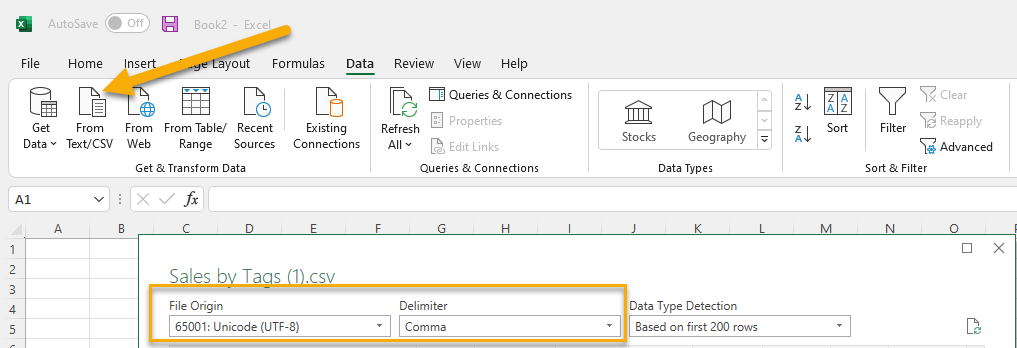
5.) Verify that the data looks correct in the resulting table underneath. Click Load and you should be good to go.
On Mac
1.) Go to New (⌘ N)
2.) Once your blank workbook comes up, go to File, Import.
3.) From the 3 options, choose
CSV
4.) Find your original file location (probably downloads) and click Import
5.) A window should pop up that looks something like this. As you can see you have several options for selecting the File Origin text type and Delimiter (typically, we found UTF-8 and Comma work best, but feel free to adjust as needed).
(click
image to enlarge)
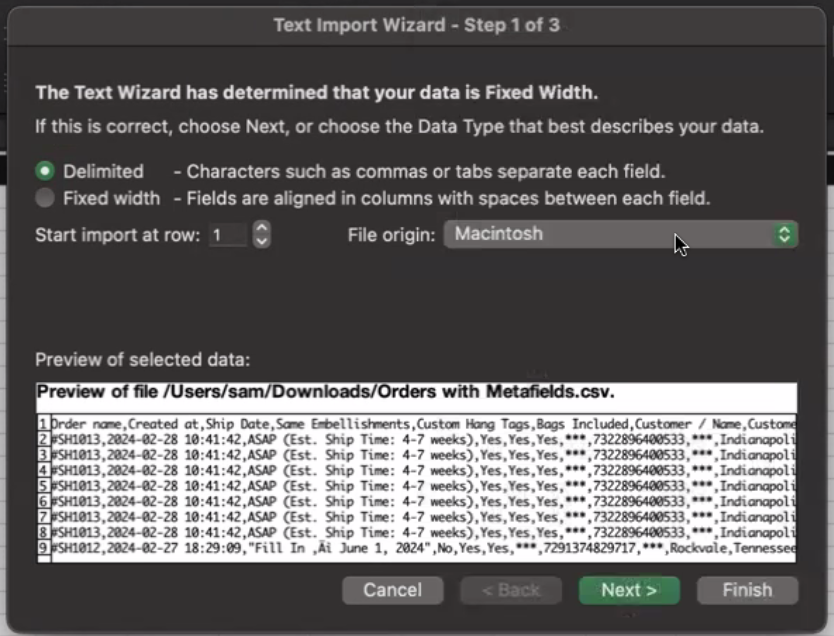
6.) Verify that the data looks correct in the resulting table underneath. Click Next/Finish and you should be good to go.
For more information about using Report Toaster, check out our FAQ or reach out to us at any time :)