
How Do I Upgrade My Report Toaster Account?
This is just a quick troubleshooting guide for any users who are looking to sign up for a paid plan of Report Toaster.
Before you begin, we recommend you close any other instances you have running of Report Toaster (e.g. another tab
or window).
If you're having issues signing up, then we usually recommend fully exiting the app and logging
back in via the Shopify admin before attempting to try again.
Signing Up
1.) For Basic and Grow plans of Shopify, you can start off by clicking this link in the help bar on the app homepage:
(click image to enlarge)
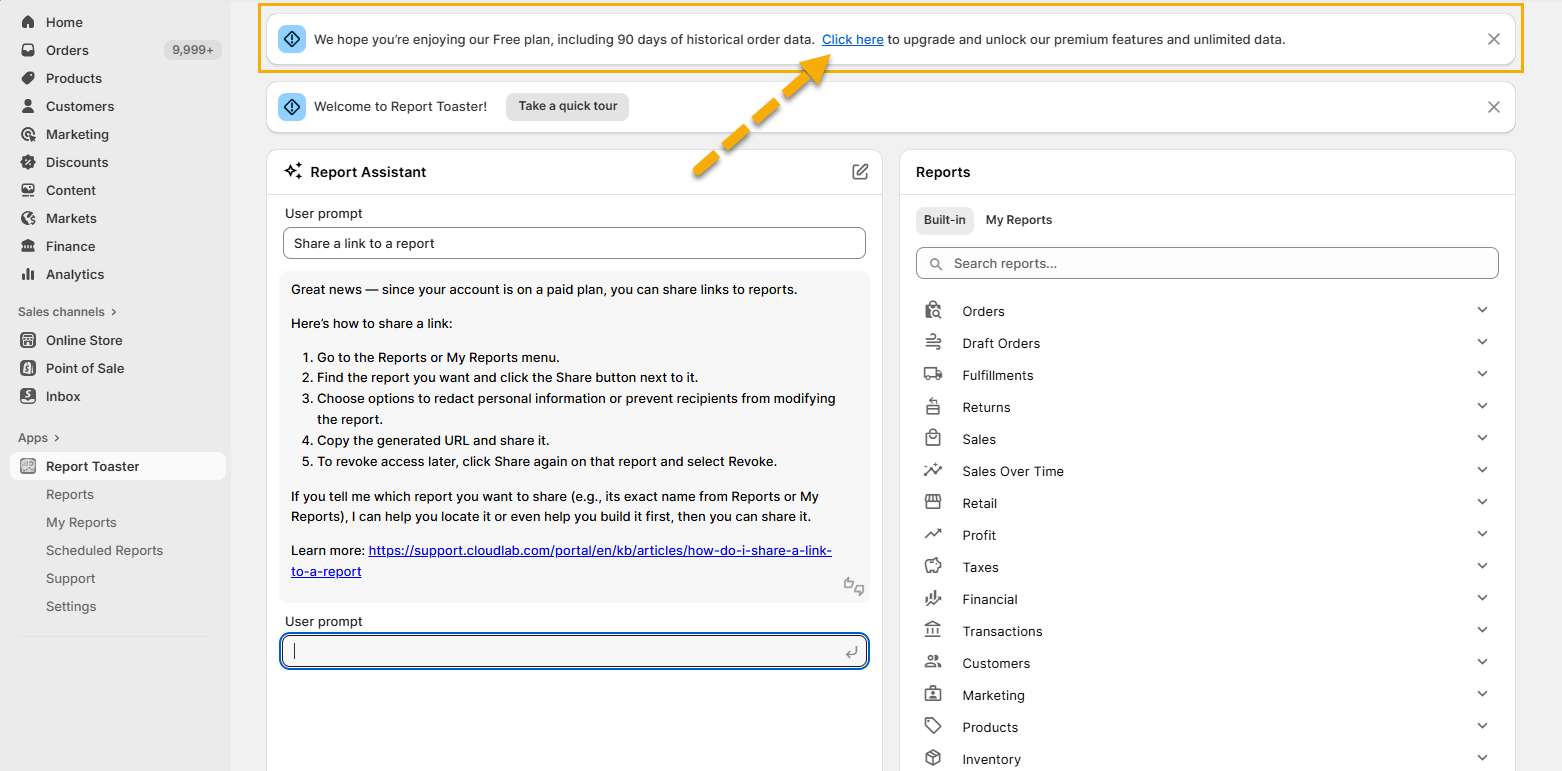
Shopify Advanced and Plus users can follow the same process, but note that you will have slightly different wording in this banner, depending on how many days you have remaining in your trial:
2.) This will take you to the subscribe page, and then you can click the Subscribe button to sign up your account:
(click image to enlarge)
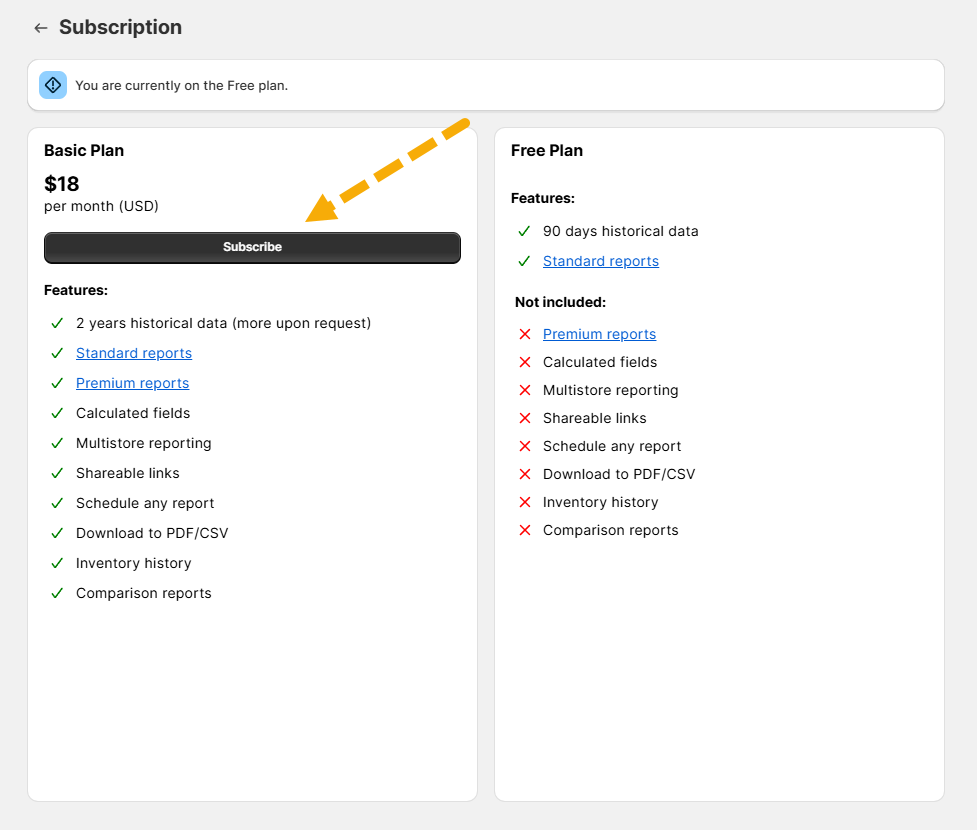
This page above is for a Shopify Basic user. The price you pay per month and the plans available to you depend solely on the Shopify Plan for your store. See our app listing here.
3.) You will then be taken to Shopify to approve the app charges. If everything looks good to you, click Approve Charges and you're all set!
Before approving charges, make sure that the amount listed on the Shopify page matches the amount on the Subscribe
page in Report Toaster.
(This is particularly important for users who are utilizing combined or annual
billing options!)
If it doesn't, then you will need to start over (see above).
Troubleshooting
If you're having difficulty signing up, here are a few things you can try:
-
Close down all tabs/windows of Report Toaster, then log back in via the Apps menu in the Shopify admin and try again. This is the #1 cause of issues when trying to sign up.
-
Make sure you have the correct permissions to approve app charges on your store.
To check this, have your store owner go to Settings and then the Users and permissions section:
(click image to enlarge)
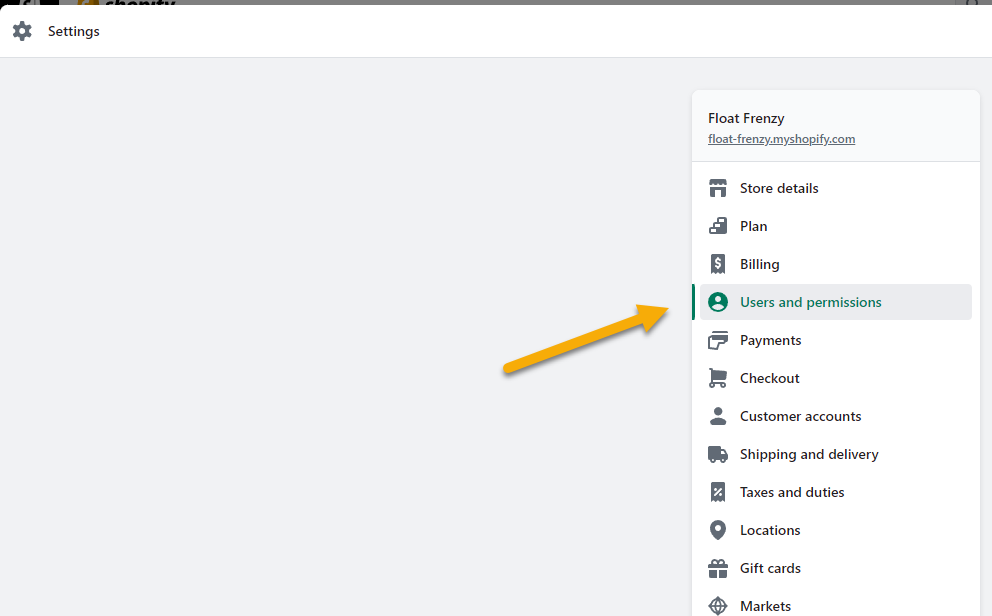
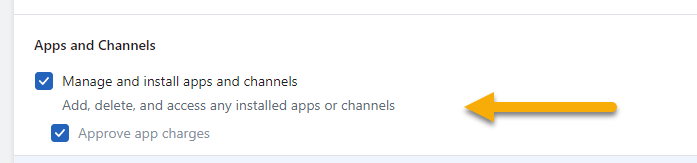
Then under your user, towards the bottom of the various permissions, make sure both of these boxes are checked:
(Don't forget to save any changes when done!)
(click image to enlarge)
Finally, if you're getting an error message or still having issues signing up, reach out to us at [email protected].
Our team has years of experience working with Shopify, and we'd be happy to help you resolve any issues in signing up for your store.