
Report Toaster Scheduled Reports and Slack
Lately we've gotten a couple of questions about how to setup Report Toaster's Scheduled Reports feature with Slack Channels.
In short, some of our users have asked about how they can make the Slack Channel the recipient of a Scheduled Report that is sent out via email. This integration is fairly easy to setup, so let's take a look :)
Note - You must be on a paid plan of Report Toaster to have access to Scheduled Reports. You can check out our app listing for more information on our various plans.
So long as you're on a paid version of Slack, then the process is relatively straightforward:
We'll break this down step by step:
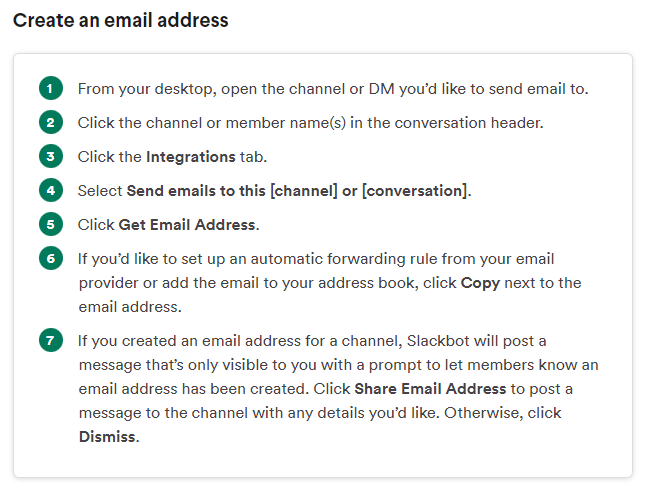
1.) Assign an email address to the Slack Channel you want to receive the Scheduled Report.
See Slack's instructions here for more information, but basically the process works like this:
(click image to enlarge)
2.) Create your Scheduled Report.
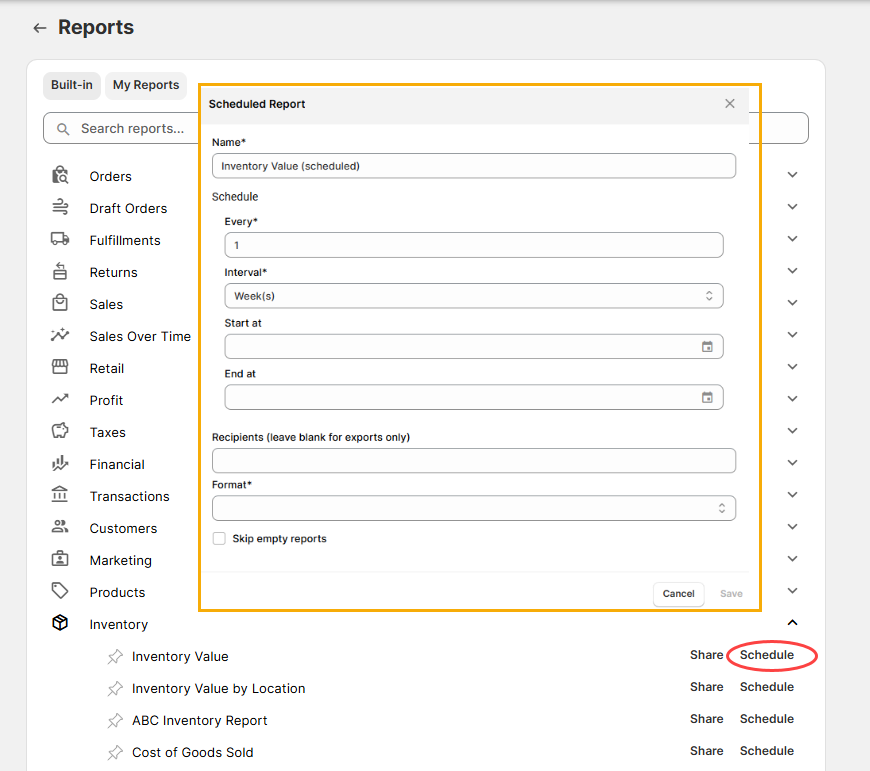
See our main guide here for more information, but essentially you can go to any report, click the Schedule button, and fill out the information like so:
(click image to enlarge)
Note - You may want to save the report you are scheduling to your
My Reports first.
That way, any changes you make to it will automatically be applied next time the schedule
runs.
3.) Create your Recipient using the Email Address from Step 1.
When you get to the 'Recipients' field in the step above, click the box and select '+ Create new recipient'
(click image to enlarge)
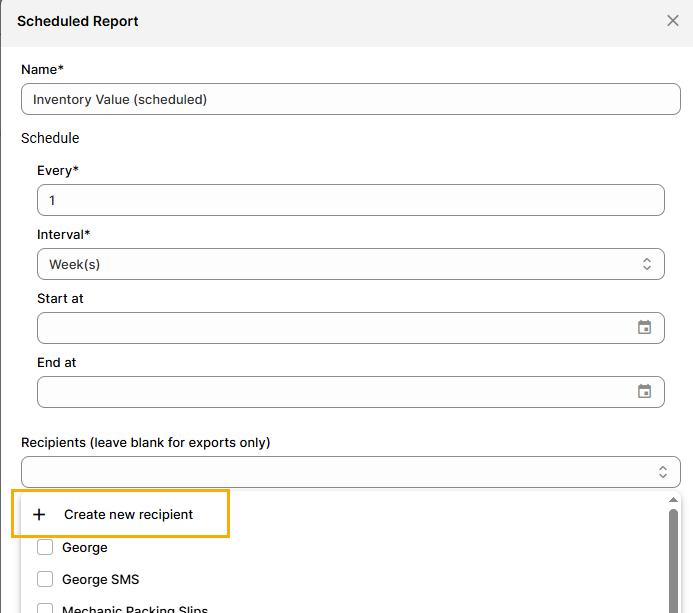
In the box that follows, enter the email address you created in Step 1.
Click Ok and Save respectively when you're done.
Note - If you want your Slack to display an attachment of the report rather than a clickable link, then be sure to
toggle the 'Create Attachment' option under your Slack Recipient.
See our main Scheduled Reports guide here for more info.
And that's it!
Non-paying Slack Users
For users without a paid version of Slack, the process is a little trickier. Please contact us at [email protected] and we'll see what we can do to get you sorted.