
How Do I Save, Copy, Update, Overwrite, or Restore a Report?
Another entry in our 'Basics' series, this article will cover all your options for saving a report in Report Toaster.
Video more your thing? Check out the video version of this guide here.
For instance, say I wanted to save a report for future use?
Or edit a report and save those changes?
Or restore a template report back to its original settings?
We'll start with the Profit by Product report like so:
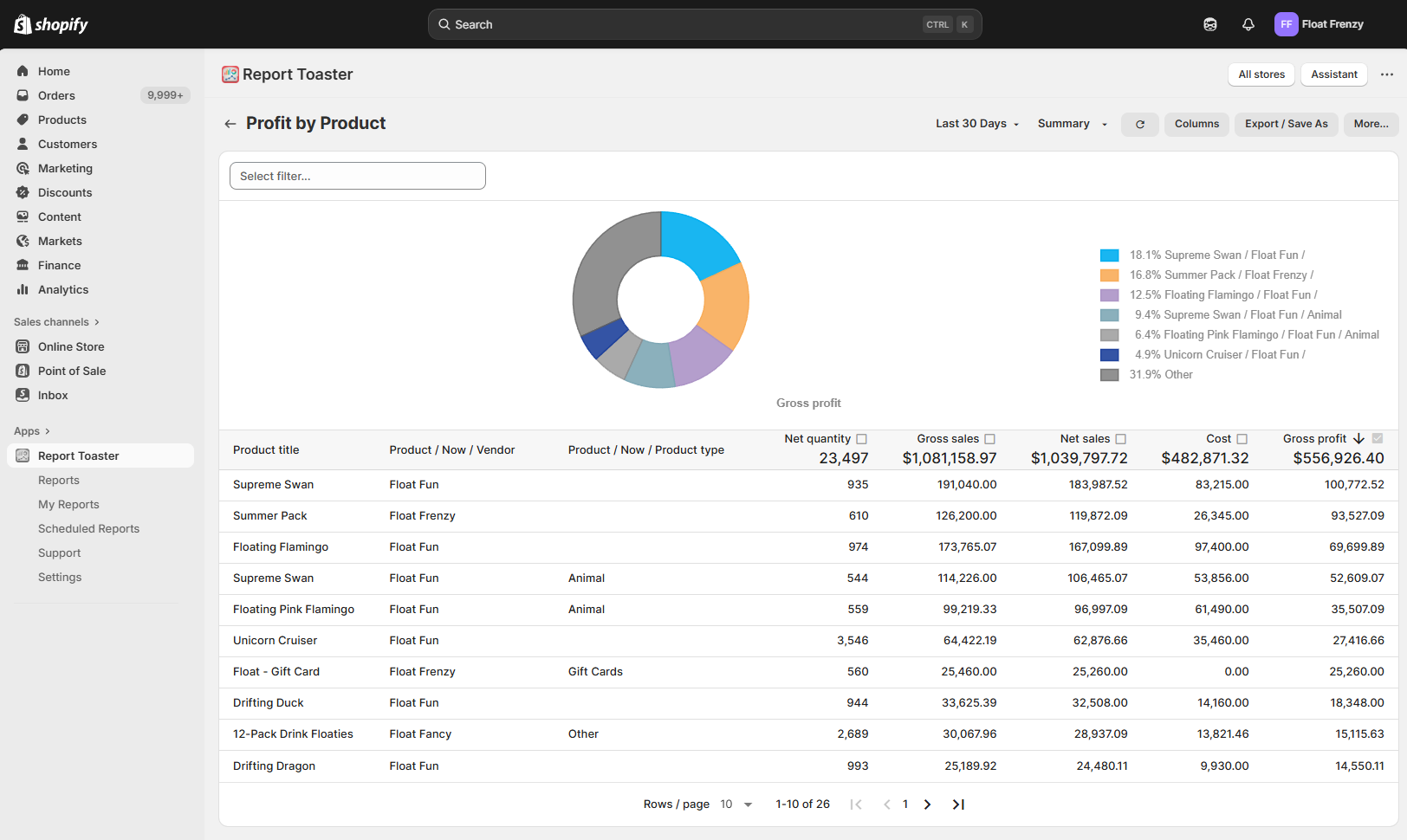
(click image to enlarge)
Saving a Report
Report Toaster does NOT automatically save a report when you adjust things like columns, filters, dates or sorting options.
This is deliberate, as it both encourages merchants to experiment and prevents the likelihood of an accidental mistake permanently overwriting an existing report.
Suppose I make a change to that report (e.g. I change the date at the top right to be Year to Date) and I want to save it for future use?
This is a great idea to make my favorite reports easier to find, or to save me time in having to customize the report every time I want to use it.
To start off, click the Export/Save As button (top right), and go to Save to 'My Reports'.
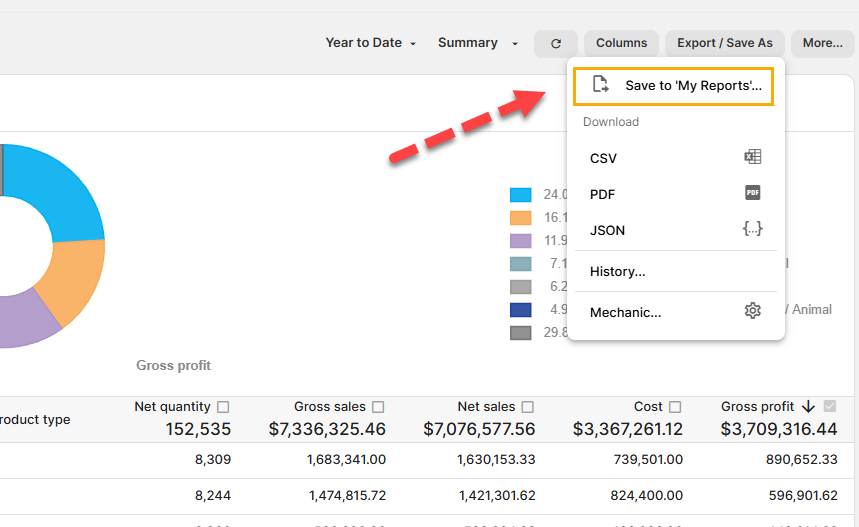
(click image to enlarge)
This causes a box to appear where we can give the report a name. In this case, I'm going to call this report Profit by Product - YTD (for Year to Date):
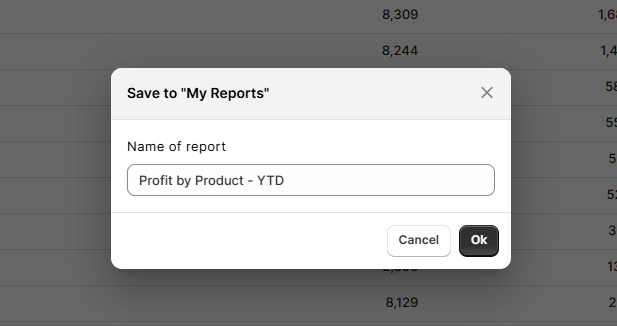
(click image to enlarge)
Notice that now, the new report appears under My Reports.
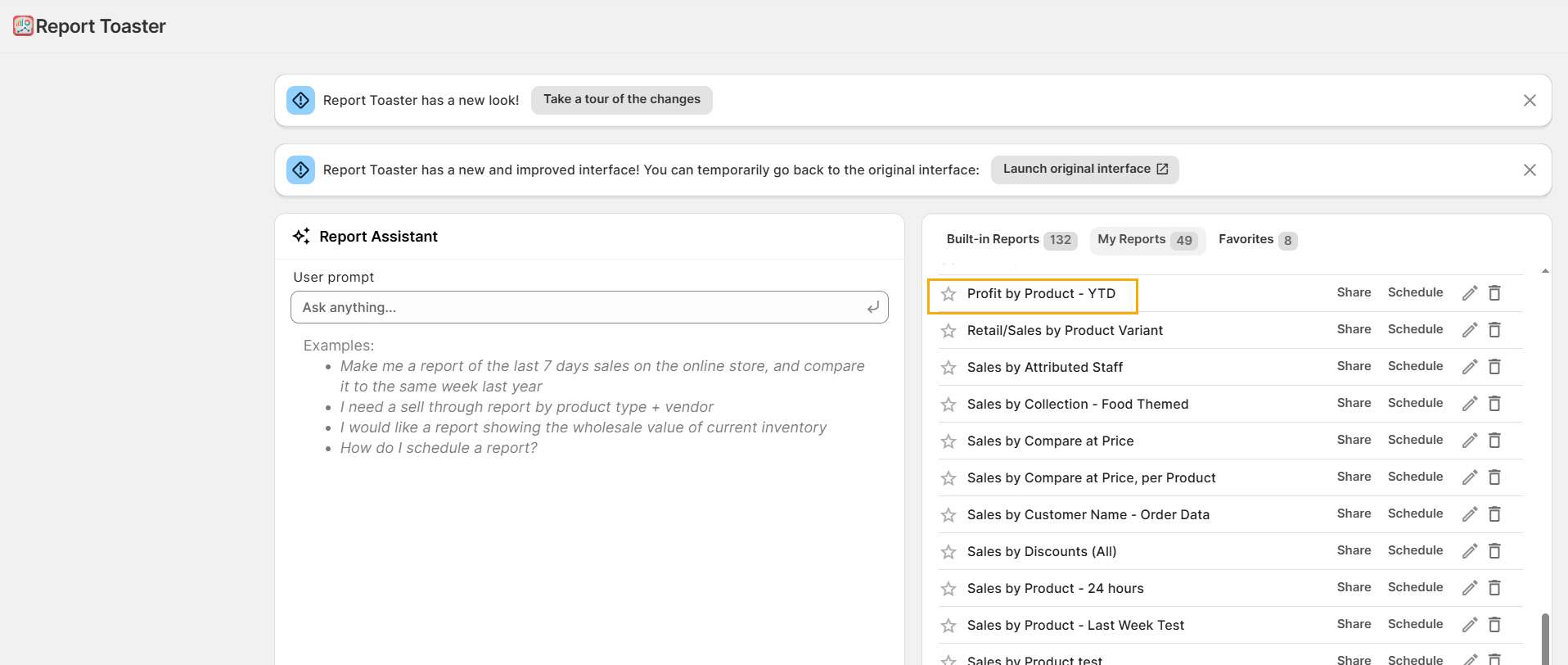
(click image to enlarge)
Note - If you don't see this report right away, refresh your browser.
Copying a Saved Report
This step is very simple - just repeat the above again but give the report a new name.
For example, let's say I wanted two copies of the above report.
I could go to Save to My Reports, call it Profit by Product - YTD 2, and click Save.
A fresh copy will be saved without overwriting the original.
Updating a Saved Report
Now suppose I want to make changes to this report, but I DON'T want to overwrite the original.
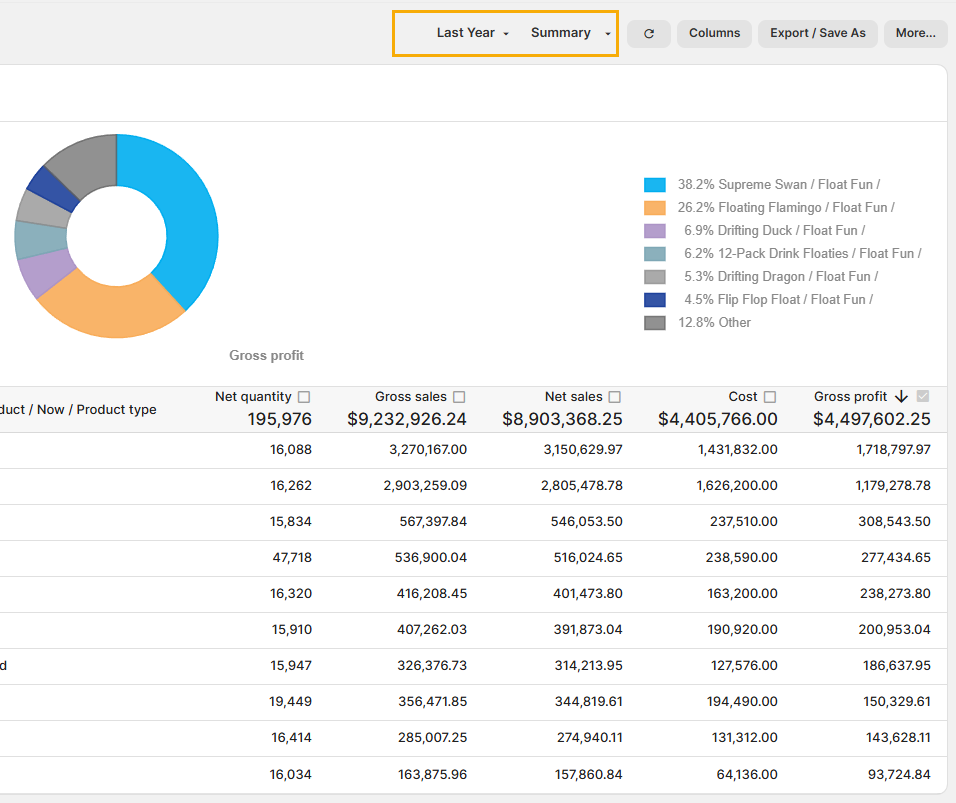
For example, let's say I want to change the report to Last Year, but I don't want to replace my current YTD report.
All we have to do is follow the same process. First, make the change(s) you would like to see:
(click image to enlarge)
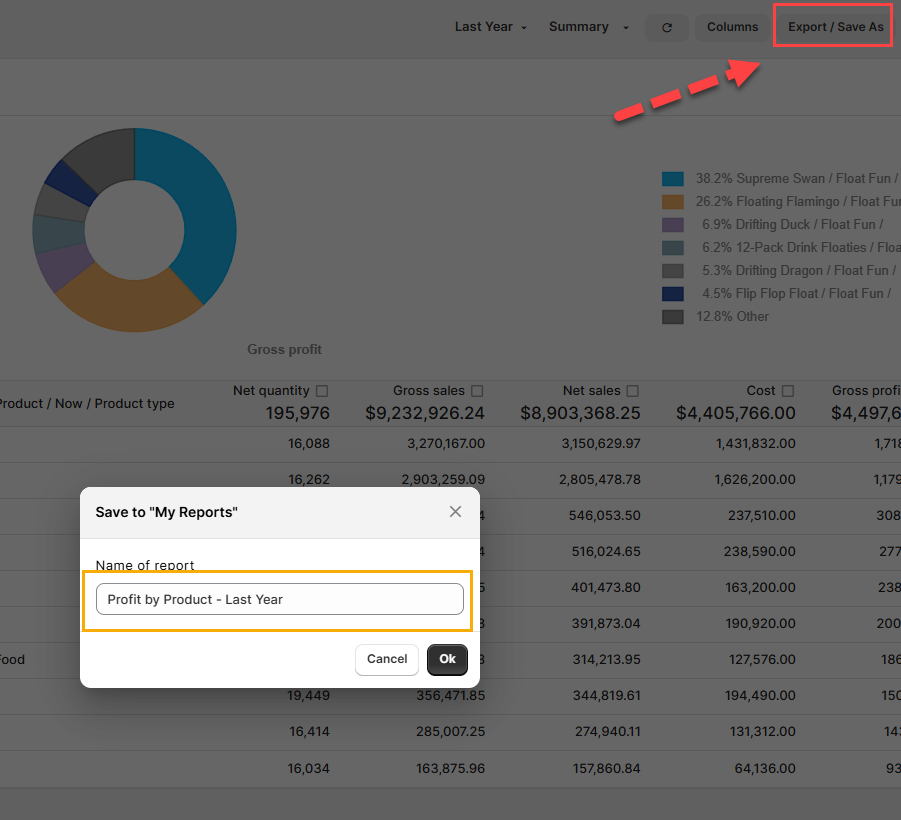
Then go to the top right, click Export/Save As, and go to Save to 'My Reports'.
This time we'll give the report a different name, so let's call it Profit by Product - Last Year.
Note - If you're working on a previously saved report, it will prepopulate this field with the existing name.
(click image to enlarge)
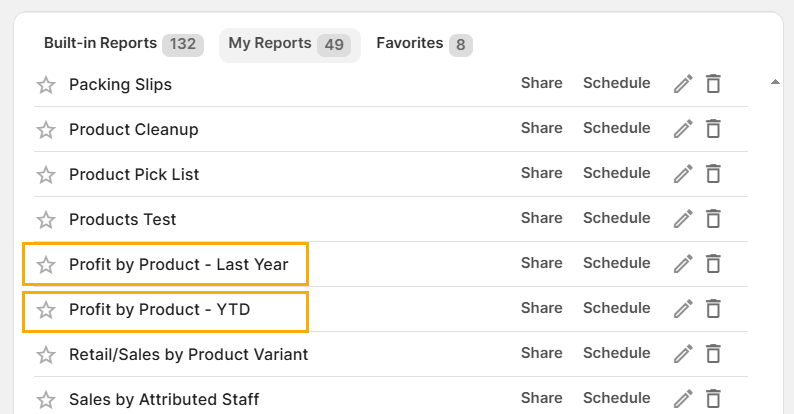
Click Ok, and notice that it saved a copy of this report in My Reports without overwriting the original.
(click image to enlarge)
Overwriting a Saved Report
Now suppose I'm making a change and I DO want to overwrite the original report.
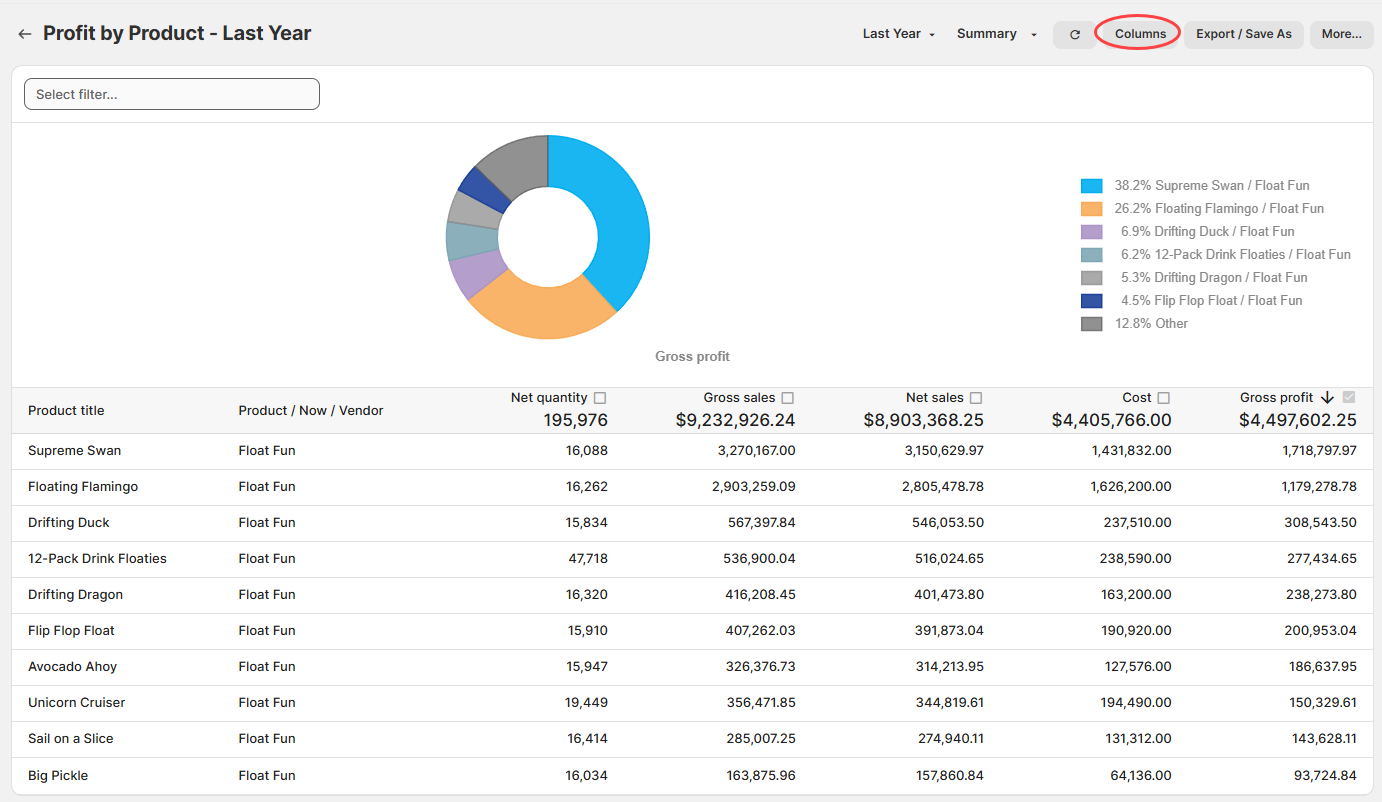
For example, let's pretend that I no longer need to include Product Type on this report.
Start off by making the changes you would like to see.
(click image to enlarge)
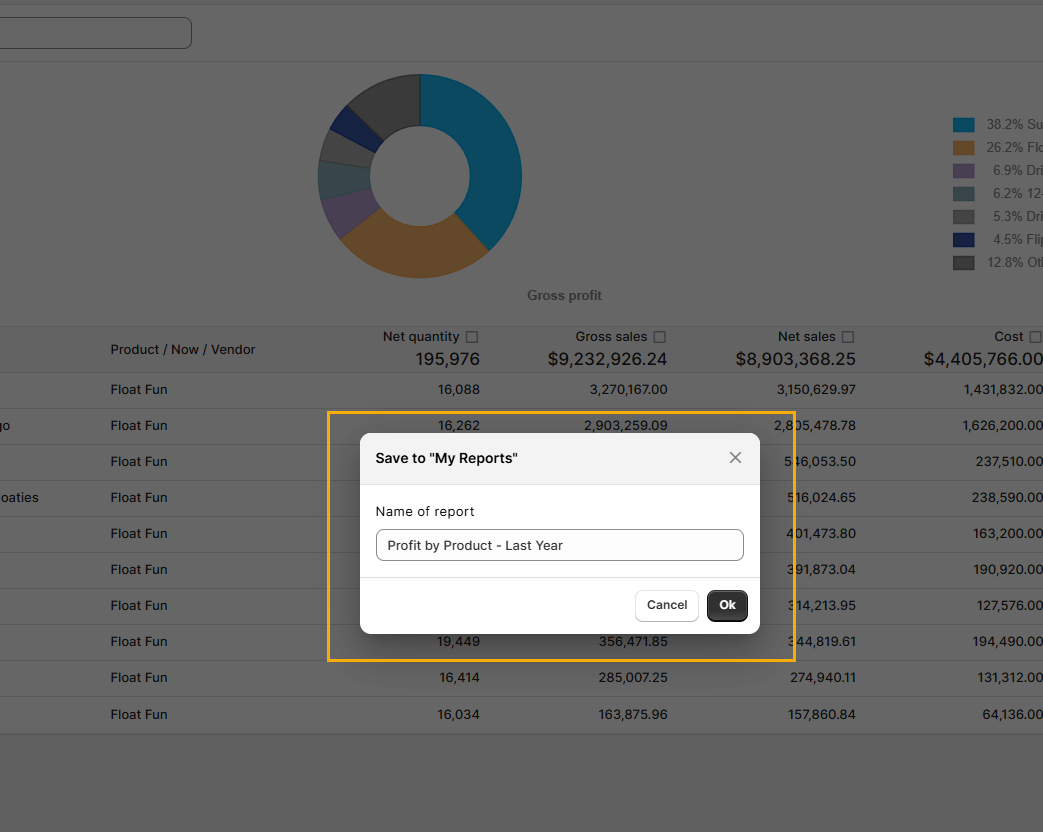
Then click Export/Save As, go to Save to 'My Reports' and the name box will pop up again.
Now in this case, we want to overwrite the original report. So instead of typing in a new name, just click Ok.
(click image to enlarge)
The report will now be updated and will overwrite the one saved in My Reports.
If you want to confirm, refresh your browser and open the saved report again.
Restoring Defaults on a Report
This is a very useful feature when working on a report and you want to return to where you were before.
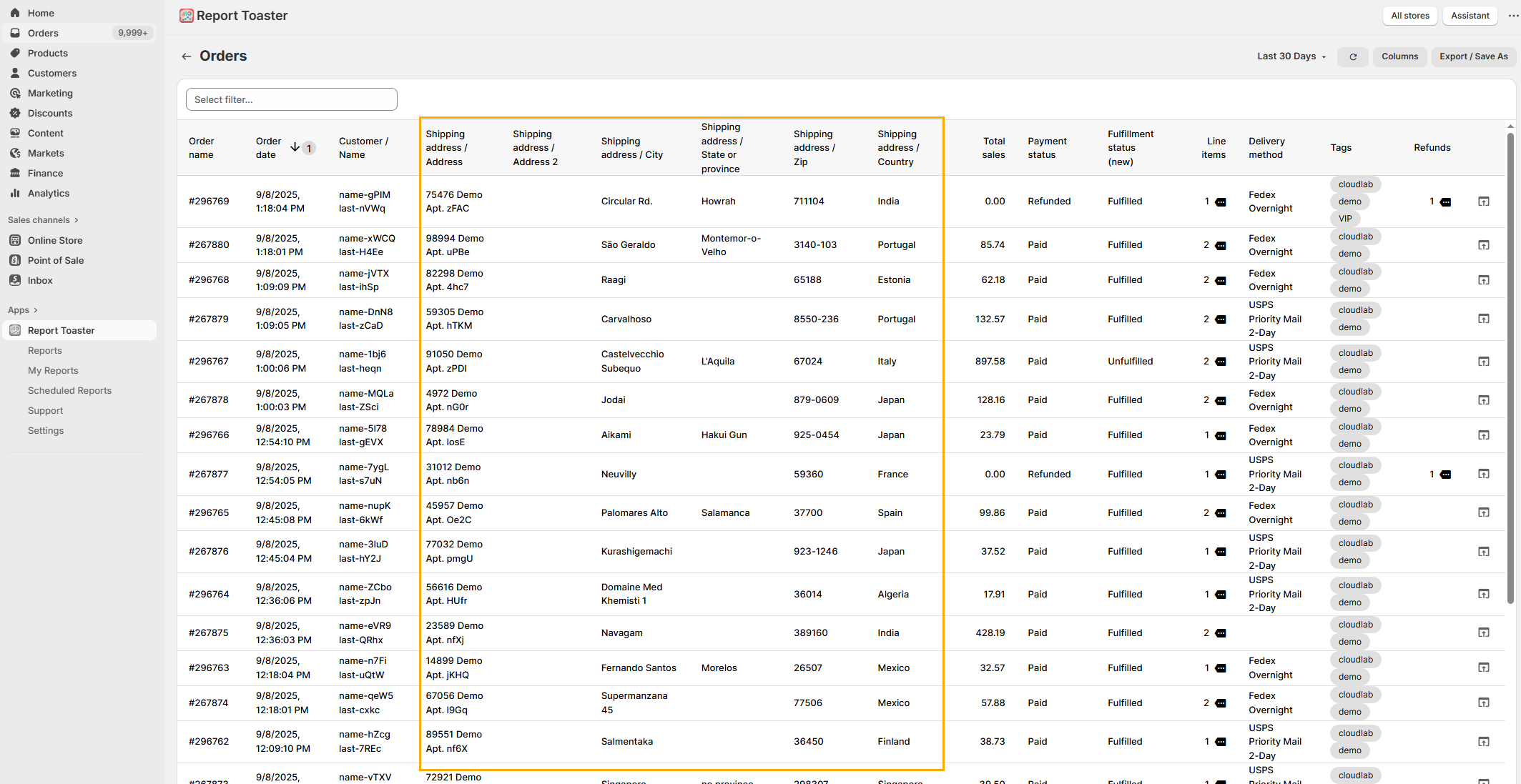
For example, let's say I was looking at the default Orders report and added a number of extra columns:
(click image to enlarge)
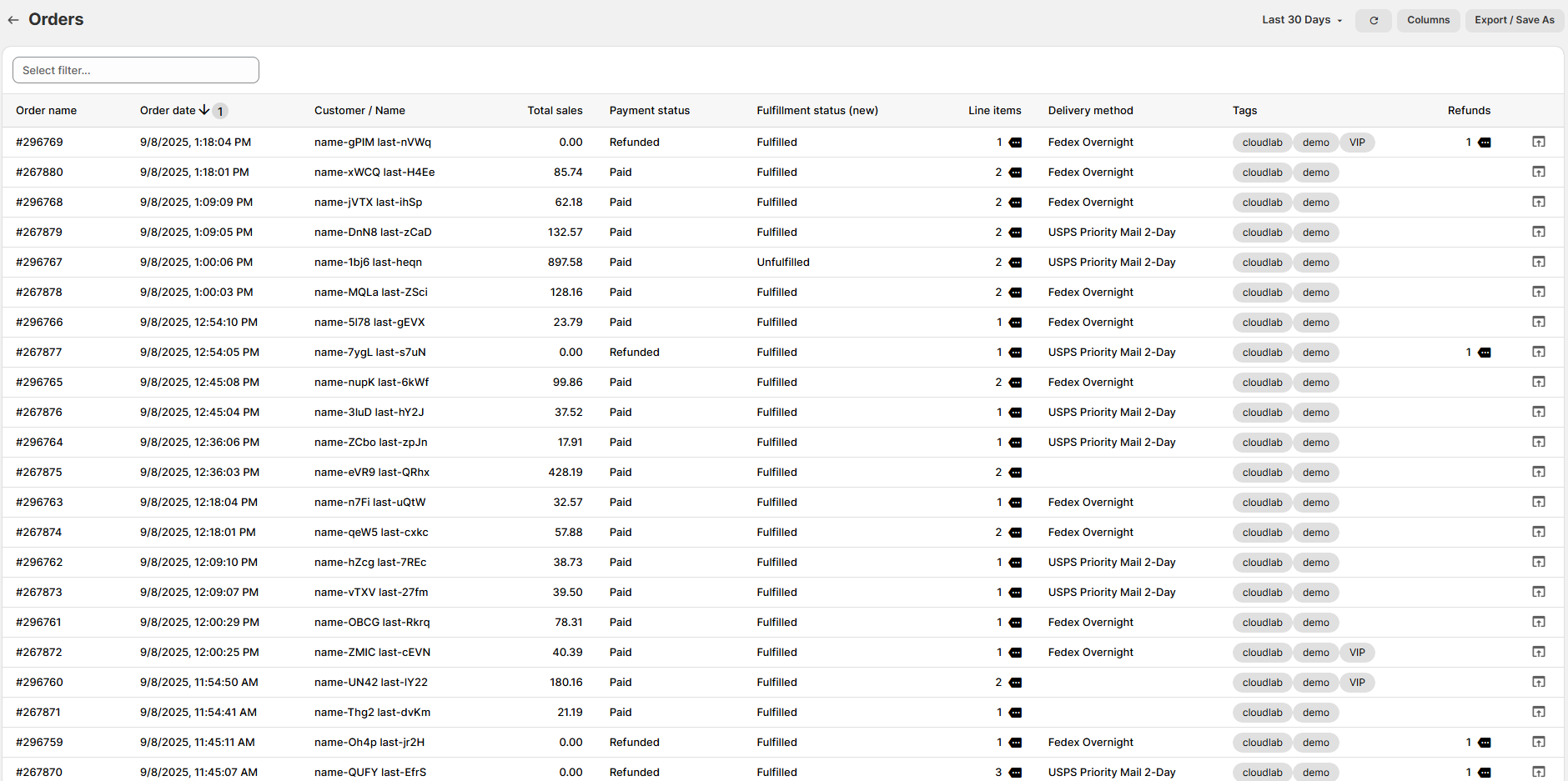
If I decide I want to start again, all I need to do is refresh my browser.
This will reset the report back to its default state.
(click image to enlarge)
This also works if you were making changes to a saved report and wanted to return to the last saved version.
Note - Once you have saved and/or overwritten a report, you cannot return to the original default template. The default report will still be available separately in the Reports menu.
Adding a Report to Favorites
This works with both built-in Reports and My Reports, and is useful for quickly accessing reports you use fre