
Premium Report - Stock Report
Stock Reports
Stock Reports are used to compare how much of something has been sold vs how much you have in stock at each of your different locations.
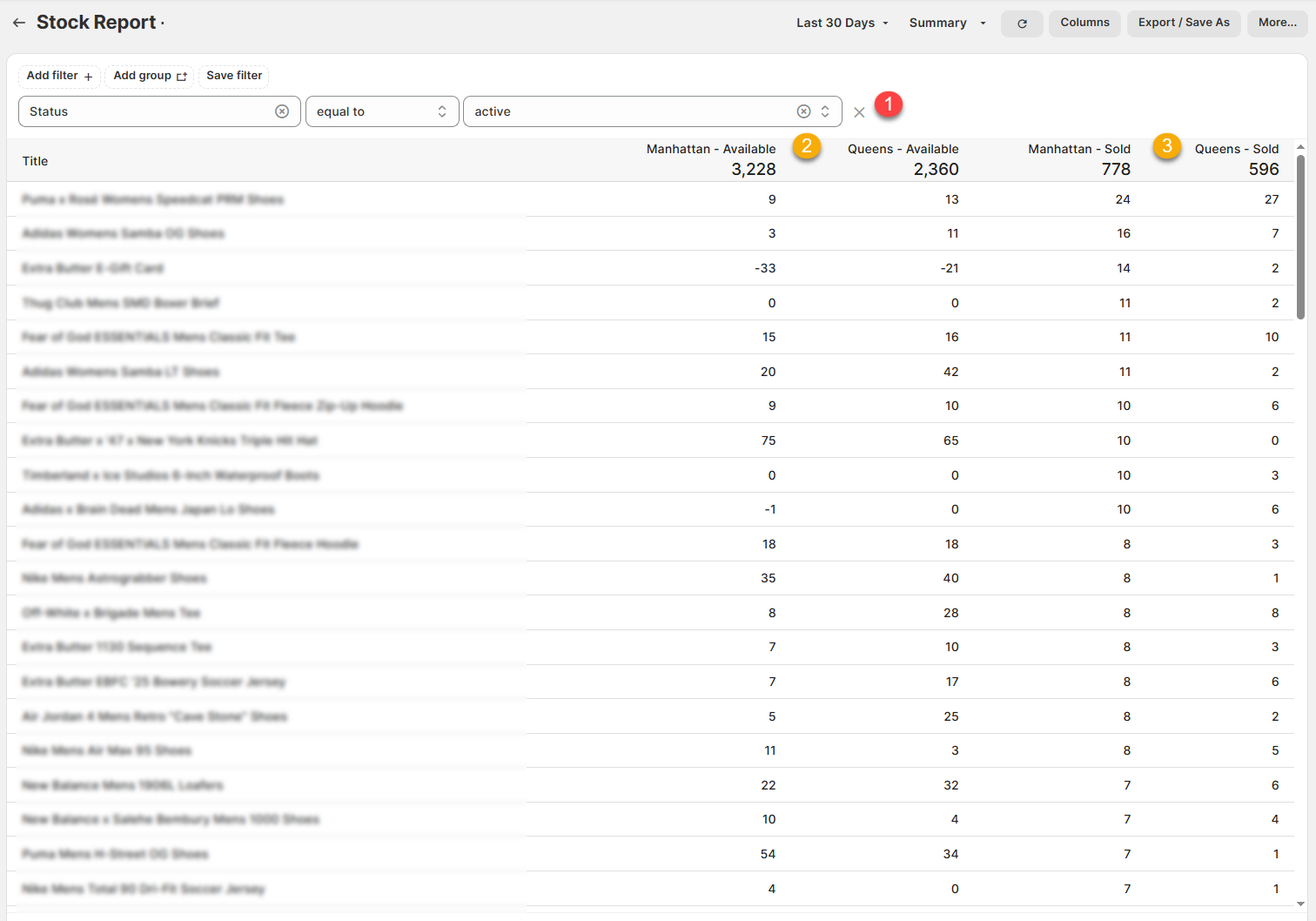
These reports follow a similar format to the Sell Through Reports, but display the stock that's available and quantity sold separated into columns for different locations (based on the ones you need).
As a Premium Report, this is available on all Paid Plans of Report Toaster. If you aren't signed up, follow these steps here to upgrade your account.
Note - As every merchant's store is different, these columns for available/sold at individual locations have to be configured by our Report Toaster staff.
Please contact us to [email protected] and we can add these fields to your account.
(click image to enlarge)
Here are a few terms to be familiar with in order to understand Stock Reports:
1.) Status, equal to, Active (FILTER): This filter ensures that only currently active products display in the report.
This prevents lots of draft products with 0 sales and 0 available from showing in the report.
2.) ____ - Available: How many units you currently have in stock for a particular product/variant/vendor at this location.
For example, looking at that first row, I have 9 of a particular T-shirt in stock in my Manhattan Location and 13 in my Queens location
3.) ____ - Sold: How many units you currently have sold from a particular product/variant/vendor at this location.
Note - this only tracks sales that physically took place at that location - e.g. Point of Sale (POS) Sales.
For example, looking at that first row, I have sold 24 of a particular T-shirt in stock in my Manhattan Location and 27 from my Queens location
Like all Report Toaster reports, these reports are fully customizable - so you can adjust the date range, add/remove columns, introduce a filter or change the sort to suit your individual needs. See our basic guides here for more info.
For other premium reports you can add to your account, check out our other article guides here.