
Premium Report - Revenue Recognition
Revenue Recognition/Revenue Recognition Detail
Revenue Recognition reports are used for financial reports in accrual based accounting.
This article assumes you have a basic understanding of Revenue Recognition. You may want to refer to our other article, which covers what constitutes unrecognized revenue as part of our Unrecognized Revenue reports.
For businesses that operate under this system, it's important to know what constitutes revenue.
If order is canceled = No
If Sale and a gift card, = No
If other Sale, = Yes
If Shipping, = Yes
If a Refund and no product (i.e. Order Adjustment), = Yes
If a Refund and a product that was fulfilled (including Custom Sales), = Yes
Otherwise = No
Once we've determined that we have revenue (see above), we must then decide the Revenue Date (WHEN it should be recognized).
This uses the following rules:
If a Sale = Use Fulfilled At (fulfillment date of the individual line item)**
If Shipping = Use Order_fulfilled_at (fulfillment date of the entire order)
If a Refund = Use latter of Created_at for the Refund Line (when Refund was created) OR fulfilled_at (fulfillment date of the individual line item).***
Otherwise, leave blank (it doesn't represent revenue)
**This means that orders involving multiple line items with different fulfillment dates for each can have multiple revenue dates for each as well.
*** This ensures that cases involving a partial refund on a partial fulfillment (i.e. ordered 2, refunded 1, fulfilled 1), the refund doesn't count against revenue that has yet to be recognized for the remaining item until it's been fulfilled.
Report Toaster has several Revenue Recognition reports, including one for the Summary and the Details.
As Premium Reports, these are available on all Paid Plans of Report Toaster. If you aren't signed up, follow these steps here to upgrade your account.
Let's take a look at the Revenue Recognition Detail report (click to zoom)
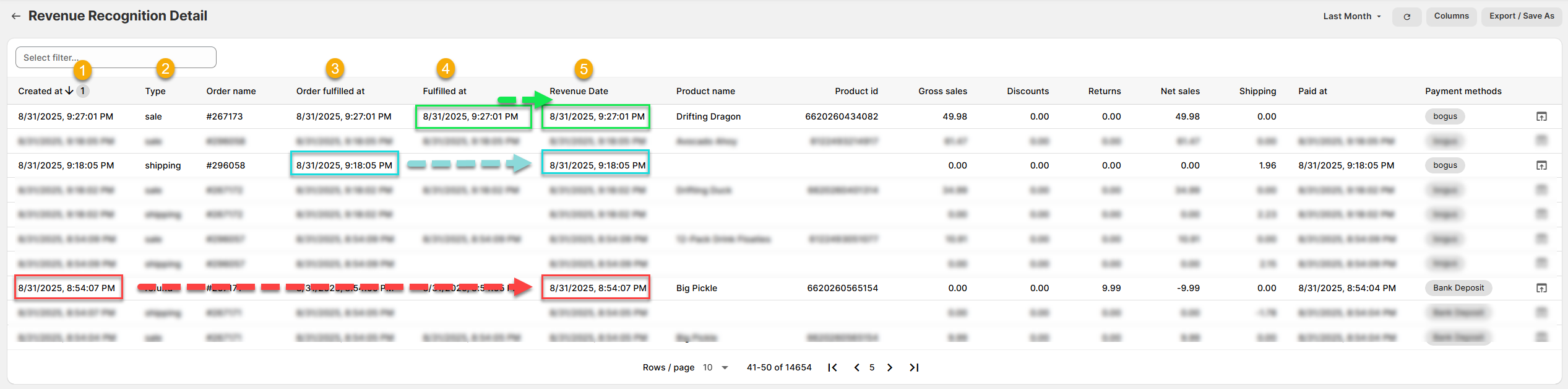
(click image to enlarge)
There are a few main terms to understand for Revenue Recognition reports.
1.) Created at: When each order line was created.
- For an item's sale and shipping, this is usually the date and time of the order.
- For the Refund, this is usually the date/time when the refund is created.
For example, Order #267173 was created on 8/31/25 at 9.27pm. So it would show this under the sale and shipping line.
2.) Type: The type for each line on the order. The possible values here are Sale, Refund, Shipping, Payment, and Credit (with the first 3 being the most significant in this context).
For example, imagine we only had 1 order, #1001, which was for a single item that was shipped and eventually refunded. There would then be 3 rows on the report, one for the sale of the item (Type = Sale), one of the Shipping (Type = Shipping) and one for the Refund (Type = Refund).
3.) Order Fulfilled at: When the order as a whole was fulfilled. This is left blank until the whole order is marked with a Fulfillment Status equal to Fulfilled.
For example, imagine Order #1002 had 2 items in it, a red ball and a green ball. The red ball fulfills on February 9th at 09.00 AM, the Order Fulfillment Status is set to Partial, and the Order Fulfilled at is blank.
On February 10th at 09.00 AM, the green ball fulfills. Now the Order has a Fulfillment Status of Fulfilled, and the Order Fulfilled at date is marked as 2/10/2023, 09:00:00 AM
4.) Fulfilled at: When the individual line item is fulfilled. This is left blank for Shipping (which isn't a line item) or for Refunds that don't apply to a Fulfilled Order Line Item.
For example, on Order # 1002, our red ball has a Fulfilled at date of 2/09/2023, 09:00:00 AM and our green ball has a Fulfilled at date of 2/10/2023, 09:00:00 AM.
5.) Revenue Date: The date and time when the revenue was recognized. Note that for any rows where the Revenue Date is blank, this is because the revenue has yet to be recognized (above).
For example, if we were looking at the details above:
The shipping (blue) has a revenue date equal to the Order Fulfilled At date
The sale (green) has a revenue date equal to the Fulfilled At date for the line item
The refund (red) has a revenue date equal to the Created At date for the refund
If you're looking for more of an overall summary, grouping all of your revenue across multiple orders according to the revenue date (above) then check out our Revenue Recognition summary report:
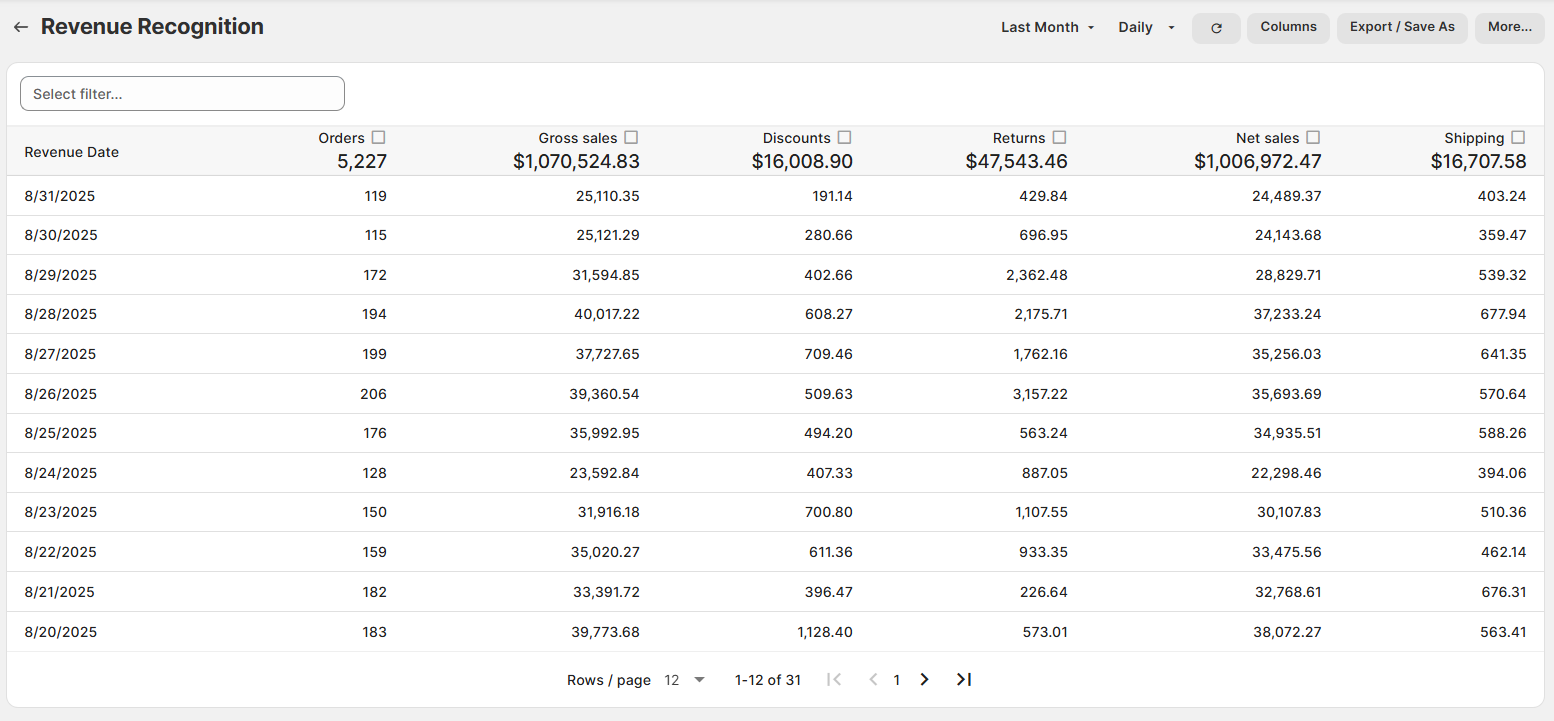
(click image to enlarge)
Like all Report Toaster reports, these reports are fully customizable - so you can adjust the date range, add/remove columns, introduce a filter or change the sort to suit your individual needs. See our basic guides here for more info.
For other premium reports that can be added to your account, check out our main guides here.